
In my earlier post I covered building a codeless connector to pull Cloudflare firewall events into Sentinel using the GraphQL Analytics API. That solves the ingestion side. Once the data is sitting in a custom table though, you still need a way to look at it without writing the same KQL query every time you want to know what got blocked overnight.
So I put together a workbook on top of the cloudflarefirewall_CL table. This post covers what it shows and how to get it into your own workspace.
Tabs
Overview Tab is meant to answer the obvious questions without much scrolling. It has tiles for event counts per action (block, challenge, allow, plus the bypass and solve states), a time series chart broken out by action, a geo map of blocked requests by country, and a top ten countries chart sitting next to an action breakdown pie.
Details Tab is where you go when something on the overview tab catches your eye. It has the top twenty source IPs, top blocked and challenged paths, HTTP methods by action, events by host, a rule hit summary, a table for challenge bypassed events, and a raw event log of the last 500 entries.
Time range, action, and rule source filters sit above both tabs, so changing one carries across whichever tab you’re on.
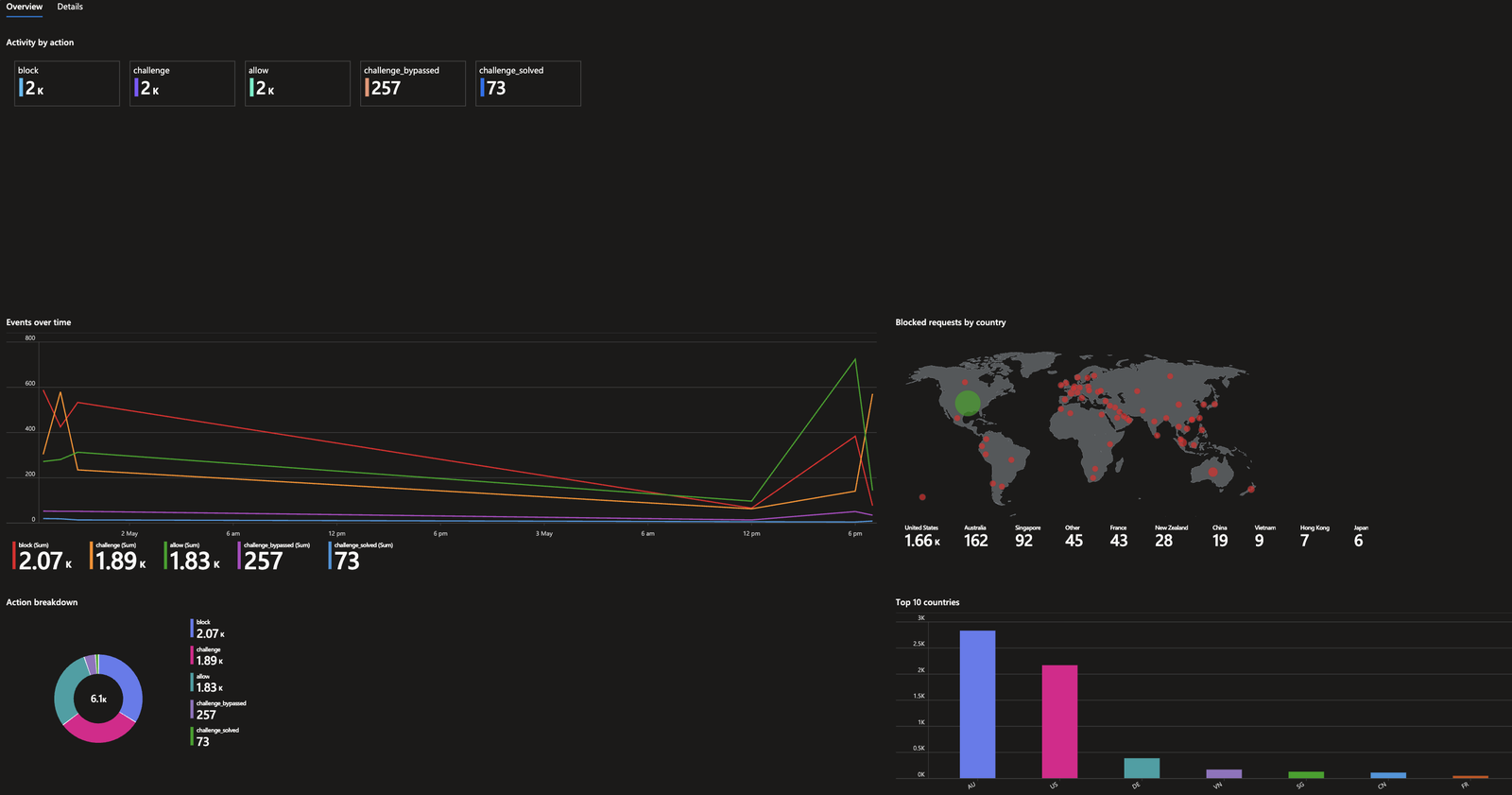 Overview tab: action tiles, time series, geo map, and top countries
This is tab built for actually investigating something. If the overview shows a spike, the details tab is where you find out who and what.
The challenge bypassed table is worth a mention on its own. Cloudflare’s managed challenge isn’t meant to be solved by automated traffic, so seeing entries here means something got past it. It’s a small panel but can be handy when investigating surge in traffic and potential Denial of Service attempts
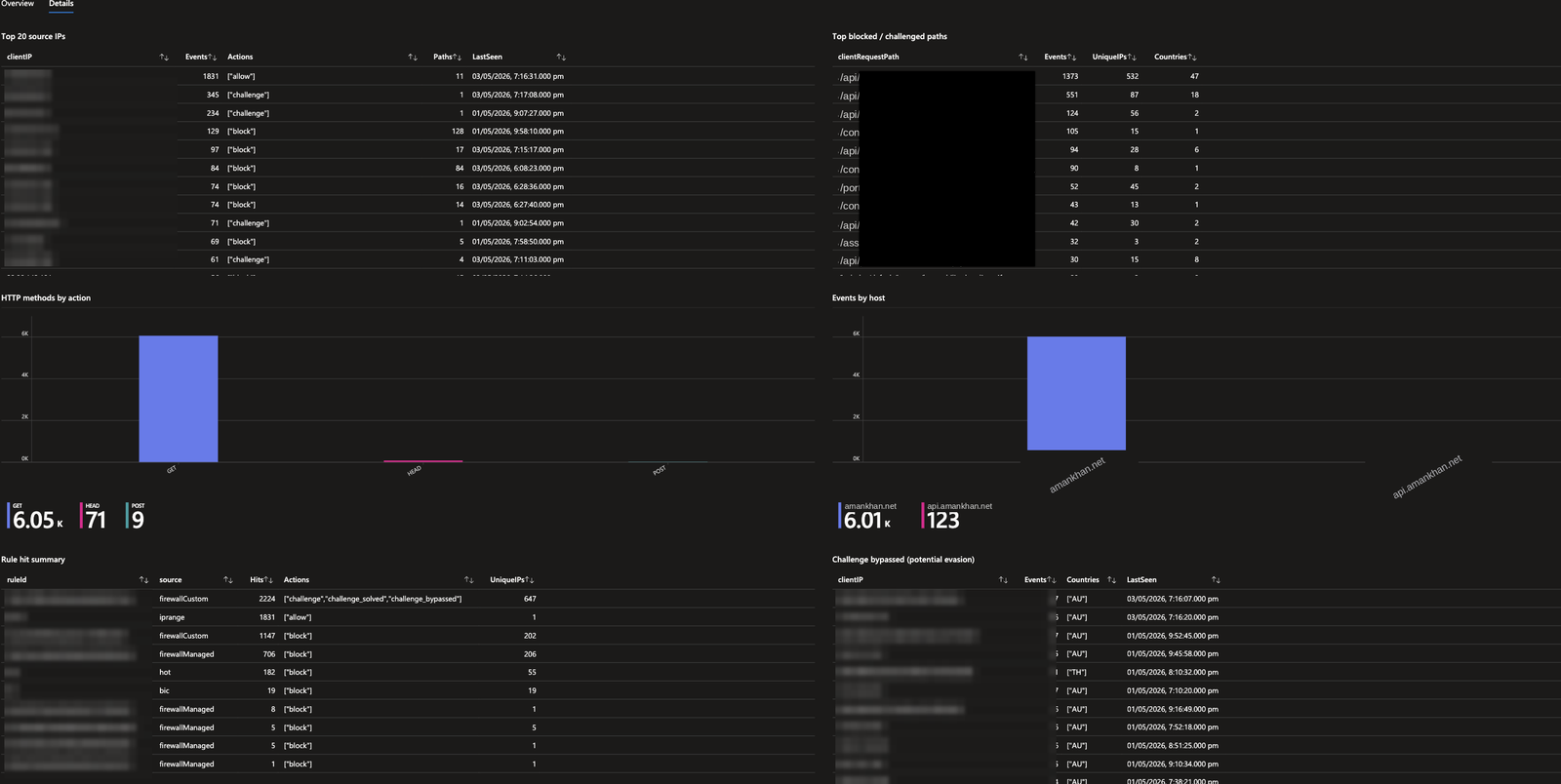 Details tab: source IPs, paths, rule hits, and the raw event log
Getting it into your workspace
The workbook files are in the same repo as the connector, under workbook/. There are two ways to import it.
Gallery import is the quicker option if you’re doing this once. In Sentinel, go to Workbooks, New Workbook, then the Advanced Editor (the </> icon), clear out the placeholder JSON, and paste in the contents of cloudflare-firewall-workbook-gallery.json. Save and you’re done.
If you’d rather deploy it as part of your existing infrastructure as code, use cloudflare-firewall-workbook.json as an ARM template, either through the Azure Portal’s custom deployment option or with az deployment group create.
Either way, make sure the table name in the workbook matches what’s actually in your workspace. If you changed the table name during the connector setup, you’ll need to update the KQL queries to match before anything shows data.
Repo’s here if you want to grab the files: sentinel-cloudflare-firewall-custom-ccf